
Convert Selectable PDF Text to Word: What Is Preserved?
Reconstruct simple PDF text as editable paragraphs, headings and lists. Compare the result and understand unsupported tables, images and OCR.
Maintained by Fixora. Reviewed .
Start with a simple text-based PDF
Try selecting a sentence in your PDF viewer. Selectable text suggests that a text layer exists, although it does not guarantee a good extraction order. A scan containing only page images needs OCR, which Fixora’s PDF-to-Word tool does not provide.
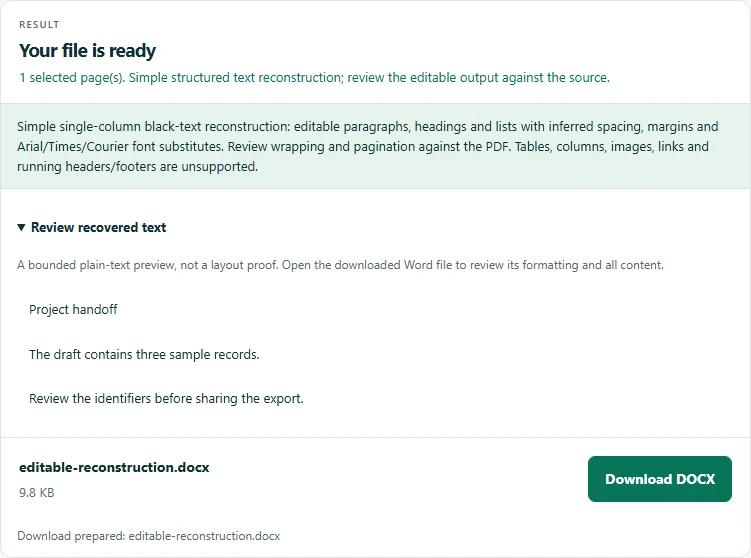
Simple document reconstruction supports single-column black text, paragraphs, headings, basic bold/italic emphasis, flat lists and page sizes. Fonts are substituted and spacing/margins inferred. Tables, columns, images, links, running headers/footers and unsupported text geometry are refused.
Choose pages and review the Word result
Load one supported PDF, keep Simple document reconstruction and choose the pages to include. The tool does not automatically switch to text extraction when reconstruction refuses a document.
Use the downloadable one-page PDF below. Leave Pages blank, then select Create editable Word file. Under Inspect the Word content, check the heading Project handoff followed by the two paragraphs. This reading view reflows the actual DOCX content; download DOCX, edit those words and inspect heading and paragraph formatting in Word. Do not expect identical typography or line positions.
Choose text extraction deliberately
A PDF may position characters for display rather than store them in a logical reading sequence. The separate Text extraction only option produces editable text with simple headings, but loses original layout, list/table structure, images and links. Multiple columns may interleave.
Scan-only pages are refused in both modes. Reconstruction also refuses mixed scanned/image content. Text extraction can omit text inside images, so use it only when that information loss is acceptable and compare every selected page with the original.
Choose a page image when appearance matters
If you need a visual copy of a page rather than editable text, use PDF to JPG and review the rendered preview. A JPG cannot be edited as Word text and does not retain selectable text.
Keep the original PDF. The Word workflow accepts one file up to 20 MB and 100 pages, with extracted-character and output limits. It is an editing aid for supported text content, not a layout-faithful converter or a document-authenticity check.
Try the verified example
These small files contain synthetic data. Download the inputs, follow the settings above, and compare your result with the expected output.
Tools for this task
Related guides
- Remove Line Breaks from Text Copied from a PDF
Join hard-wrapped lines while preserving paragraph gaps. Review headings, tables and hyphenated words before reusing copied text.
Suggest a correction with a nonsensitive example.