
Remove Line Breaks from Text Copied from a PDF
Join hard-wrapped lines while preserving paragraph gaps. Review headings, tables and hyphenated words before reusing copied text.
Maintained by Fixora. Reviewed .
Copy selectable text first
A PDF can place a line break at the end of every visual line. Pasting that text into an email or document can leave short, broken lines. Copy a passage and paste it into Clean copied text; this workspace accepts plain text or a UTF-8 TXT file, not a PDF.
If the PDF is only a scanned picture, you need a separate OCR workflow. Removing line breaks cannot recognize letters in an image or recover missing text.
Join wrapped lines and keep paragraph gaps
Choose the clean-text workflow with Join single line breaks enabled. Keep paragraph separators, and select trimming or repeated-space cleanup only when those changes suit the passage. Run Clean text.
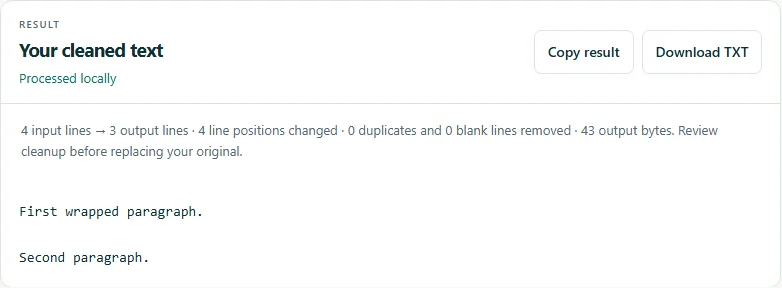
In this synthetic example, a single newline becomes a space while the blank line between paragraphs is retained.
Input:
First wrapped
paragraph.

Second paragraph.

Expected output:
First wrapped paragraph.

Second paragraph.
Use a different mode for lists
For one-item-per-line data, joining lines usually destroys the list structure. Choose Remove duplicate lines, Remove empty lines, Trim lines or Sort lines instead, according to your task.
Deduplication compares the lines after the selected transformations. Review spelling and spacing before assuming that two entries identify the same person or record. This is not fuzzy matching.
Review the original meaning
Compare the result with the source passage. Poetry, tables, headings and address blocks may rely on line breaks. A hyphen at a line boundary may remain and need manual review; the tool does not infer whether it belongs to the word.
Use the text comparison tool to inspect changed lines, then count words if needed. Keep a source copy and avoid using confidential passages as public bug examples.
Try the verified example
These small files contain synthetic data. Download the inputs, follow the settings above, and compare your result with the expected output.
Tools for this task
Related guides
- Convert Selectable PDF Text to Word: What Is Preserved?
Reconstruct simple PDF text as editable paragraphs, headings and lists. Compare the result and understand unsupported tables, images and OCR.
Suggest a correction with a nonsensitive example.